

Guided Tour
In this guide, we'll cover how to write, verify, and run WDL documents using Sprocket. This should give you a good sense of where and how you might use Sprocket in your day-to-day work.
To follow along, you are encouraged to download this WDL document that has been specifically crafted for this walkthrough. Further, if you have not already, please follow this guide to install Sprocket.
New to WDL?
This guide assumes some familiarity with WDL. If you're just getting started, the OpenWDL project maintains two tutorials:
- Getting started is a fast-paced introduction that walks you through your first workflow and the core language concepts.
- Production guide is an in-depth course that takes you from an empty directory to a tested, released pipeline—covering Git, containers, testing, and CI along the way. No prior WDL experience is needed.
Ensuring high-quality code
Using automation to ensure high-quality code both during development and through continuous integration (CI) processes is one of the hallmarks of modern development. Sprocket contains both the check and lint (shortcut for check --lint) subcommands to help you during your WDL development.
Exploring lint and validation rules
You can see a list of all of the rules Sprocket contains by running sprocket explain -h. You can dive into any of the rules Sprocket includes by running sprocket explain <RULE>. For example, if we wanted to learn more about the ImportPlacement rule, we could do the following.
sprocket explain ImportPlacementThis command gives the following description of the ImportPlacement rule.
ImportPlacement [Clarity]
Ensures that imports are placed between the version statement and any document items.

All import statements should follow the WDL version declaration with one empty line between the version and the first import statement.

Examples:
```wdl
version 1.2

workflow example {
}

import "example2.wdl"
```
Use instead:

```wdl
version 1.2

import "example2.wdl"

workflow example {
}
```
We encourage you to explore the existing validation and linting rules supported by Sprocket along with suggesting new helpful rules on our issues page. Every rule is also listed on the lint rules reference, and sprocket explain has more ways to browse them, such as --tag for a single tag and --list-all-rules for every rule at once.
Linting and validation
Both single WDL documents and directories of WDL documents can be validated and linted by using the sprocket lint subcommand.
sprocket lint example.wdlThis returns a set of validation and linting diagnostics that can/should be addressed by the workflow author. In this case, the following is the output from the linting and validation process on example.wdl.
note[MetaSections]: task `say_hello` is missing both `meta` and `parameter_meta` sections
  ┌─ example.wdl:3:6
  │
3 │ task say_hello {
  │      ^^^^^^^^^ this task is missing both `meta` and `parameter_meta` sections
  │
  = fix: add both the `meta` and `parameter_meta` sections

note[ContainerUri]: container URI uses a mutable tag
   ┌─ example.wdl:18:20
   │
18 │         container: "ubuntu:latest"
   │                    ^^^^^^^^^^^^^^^
   │
   = fix: replace the mutable tag with its SHA256 equivalent (e.g., `ubuntu@sha256:foobar` instead of `ubuntu:latest`)

note[MetaSections]: workflow `main` is missing both `meta` and `parameter_meta` sections
   ┌─ example.wdl:22:10
   │
22 │ workflow main {
   │          ^^^^ this workflow is missing both `meta` and `parameter_meta` sections
   │
   = fix: add both the `meta` and `parameter_meta` sections

warning[UnusedInput]: unused input `color`
   ┌─ example.wdl:30:16
   │
30 │         String color = "green"
   │                ^^^^^
Specific lint rules can be ignored with multiple invocations of the -e flag.
sprocket lint example.wdl -e ContainerUri -e MetaSectionsThis leaves a single diagnostic, which is that color is an unused workflow input. Before continuing on, we will remove that input from the main workflow so it doesn't continue showing up in the diagnostics.
Continuous integration
If you use GitHub for source control, you can use the Sprocket GitHub Action to ensure that your WDL documents stay formatted correctly and free of validation/lint errors.
Code editor integration
Rather than running sprocket check and sprocket lint continually on the command line, most developers prefer to have these errors and lints show up in their editor of choice. Sprocket makes available a language server protocol (LSP) server under the sprocket analyzer command.
If you use Visual Studio Code, you can easily get started by simply installing the Sprocket VSCode extension. This automatically downloads the latest version of sprocket and integrates the various lint and validation warnings into the "Problems" tab of your editor.
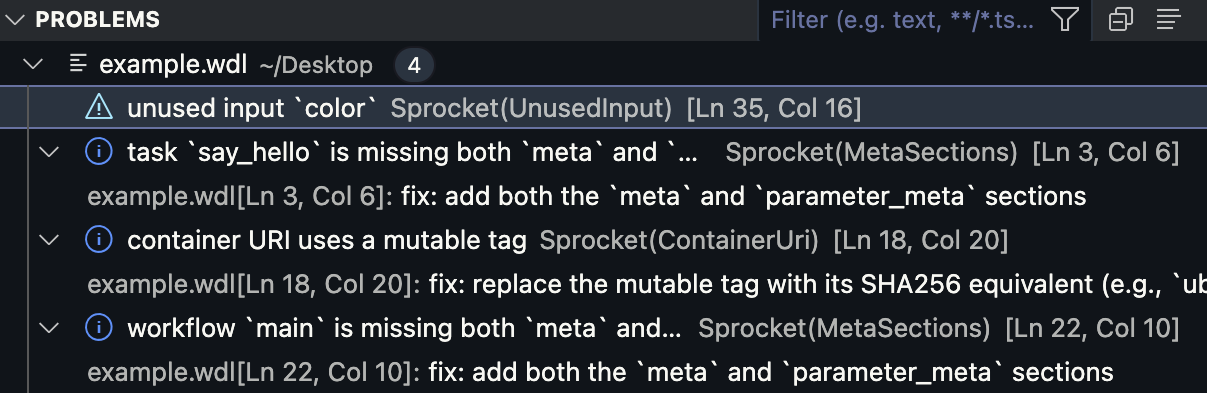
If you use Neovim, the sprocket.nvim plugin provides similar integration.
For other editors, please refer to their documentation on how to configure the Sprocket LSP (i.e., sprocket analyzer).
Generating input templates
Before running a workflow, it can be helpful to see what inputs it expects. The sprocket inputs subcommand generates a template input JSON file for a given task or workflow:
sprocket inputs example.wdl --target mainThis produces a JSON object with placeholders for each input:
{
  "main.name": "String <REQUIRED>",
  "main.greetings": [
    "Hello",
    "Hallo",
    "Hej"
  ],
  "main.color": "green",
  "main.is_pirate": false
}
Required inputs are marked with <REQUIRED> and their type, while inputs with defaults show their default values directly. Optional inputs without defaults appear as null.
You can save this to a file, fill in the values, and pass it directly to sprocket run. The --hide-defaults flag narrows the output to only the required inputs, and --show-non-literals includes expression values. See the sprocket inputs reference for details.
Running tasks and workflows
Individual tasks and workflows can be run with the sprocket run subcommand.
sprocket run example.wdlWe didn't tell Sprocket which task or workflow to run, so it inferred one: our document defines a workflow, and a workflow is selected when one exists. (If the document held several tasks and no workflow, Sprocket would report that the target is ambiguous and ask for --target.) After a few seconds, you'll see sprocket return an error.
error: failed to validate the inputs to workflow `main`

Caused by:
    missing required input `name` to workflow `main`
This is because the workflow has a required input parameter called name that must be provided before the workflow can run.
Understanding inputs
Inputs are passed as arguments after the WDL document: key=value pairs, or an input file prefixed with @ (@inputs.json, @inputs.yaml). Later inputs override earlier ones, and --target lets you drop the repeated main. prefix from keys. See Inputs and targets for the full rules.
Here, we can specify the name parameter as a key-value pair on the command line, along with the target to apply it to.
sprocket run example.wdl --target main name="World"After a few seconds, this job runs successfully with the following outputs.
{
  "main.messages": [
    "Hello, World!",
    "Hallo, World!",
    "Hej, World!"
  ]
}
Congrats on your first successful sprocket run 🎉!
If you wanted to override some of the defaults for the workflow, you could do so by defining the input in a hello_overrides.json file:
{
  "main.greetings": [
    "Good morning",
    "Good afternoon",
    "Good evening"
  ],
  "main.is_pirate": true
}
Then providing that file in the set of inputs to the workflow.
sprocket run example.wdl @hello_overrides.json main.name="Sprocket"This produces the following output.
{
  "main.messages": [
    "Good morning, Sprocket!",
    "Good afternoon, Sprocket!",
    "Good evening, Sprocket!",
    "Ahoy, Sprocket!"
  ]
}
Conclusion
You should now have a clear idea on how the most commonly used commands within Sprocket work. With further questions or feature requests, we ask that you join the #sprocket channel on the WDL Slack or file an issue on the Sprocket repository. See Community and Support for everywhere else you can reach the project.